Apple · in-car · in-car settings
CarPlay Settings: the twelve options that shape the in-car screen
CarPlay has no Settings app of its own. Its options are split between the car's screen, where a Settings tile handles appearance and layout, and the iPhone, where General > CarPlay manages the paired cars. This page walks the combined list as it stands with iOS 27, and links each row to a screen you can open.
- Newest release here
- CarPlay 27
- Versions you can open
- 5
- Top-level sections
- 18 (2 of them plain switches)
- Rows in the tree
- 114
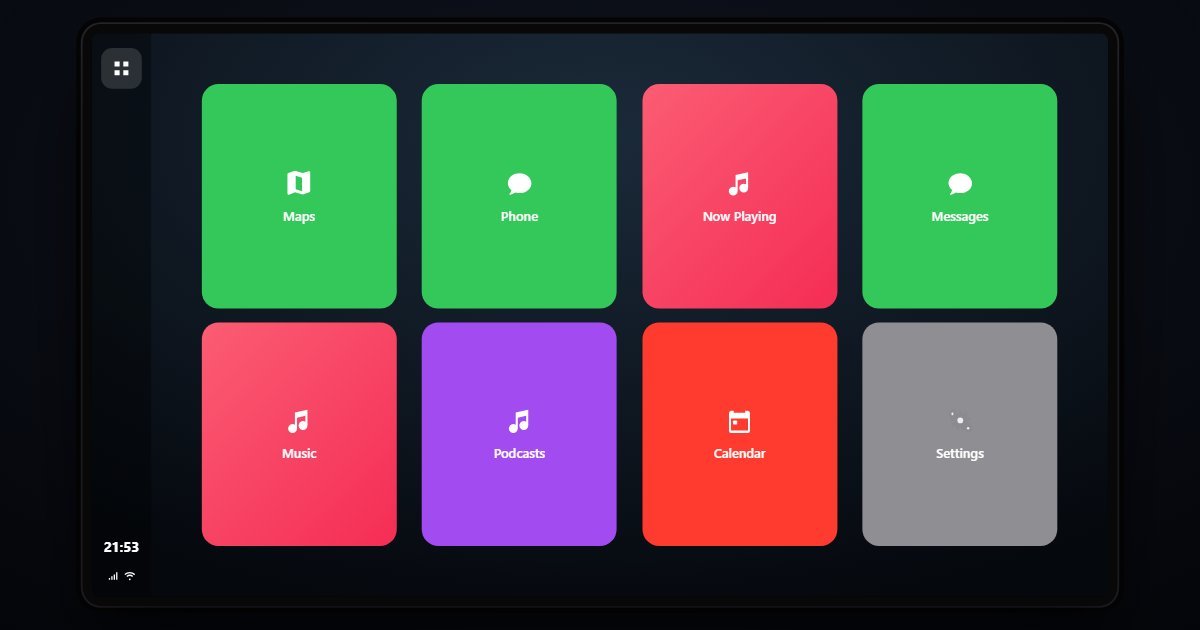
How CarPlay organises its Settings
The dashboard side comes first. Wallpaper and Appearance choose the background and whether the interface follows the car's night mode. App Layout orders the icons on the CarPlay home screen and hides the ones you never use. Do Not Disturb While Driving and Allow CarPlay While Locked are single switches. Siri Suggestions and Suggested Apps decide what the Dashboard view proposes.
Sound sets the navigation voice volume and whether Siri announces messages and calls. Maps toggles the speed limit and compass overlays and the day or night map style. Announce Messages with Siri picks who is read aloud, Driving Focus decides who may call through while you drive, and Manage Cars, the row that lives on the iPhone, lists each paired car with Prefer This Car, Charging, Steering Wheel Controls and Forget This Car. Twelve rows in all, none more than two levels deep.
What changes between versions
Five releases are here, following the iPhone they run from: iOS 16.6, 17.5, 18, 26 and 27. The row set has not changed across them; CarPlay's options have been stable since the Dashboard arrived, and Apple's larger CarPlay redesign lives in the car maker's own software rather than in this menu. What the rail shows is the same list drawn in each release's style, so it is most useful for checking which iOS a given screen belongs to.
Three settings worth knowing the path to
- Settings > Driving Focus > Allow Calls From
Everyone, Favorites, Recents, Contacts or No One. It decides who gets through while the Driving Focus is on, and it is set on the phone rather than on the dashboard.
- Settings > Manage Cars > Prefer This Car
With two paired cars, the phone connects to this one when both are in range. It is the fix for a phone that keeps joining the wrong vehicle in a shared driveway.
- Settings > Sound > Navigation Voice Volume
No Voice, Low, Normal or Loud, independent of the media volume. It is where you silence turn-by-turn directions without losing music.
Questions people ask about CarPlay settings
Where are CarPlay settings on the iPhone?
Settings > General > CarPlay lists the paired cars and, for each, the options shown here under Manage Cars. Appearance, layout and sound are changed from the Settings tile on the car's screen.
Why does CarPlay look different in my car?
The car maker draws the frame and can restrict the layout. The options in this simulator are Apple's and are the same on every head unit; what varies is the screen shape around them.
Is this the real CarPlay?
It is a simulation of the CarPlay settings screens with the rows and wording of each iOS release. The car name and phone shown are sample values, and no navigation or media runs.