Apple Watch · watch settings
watchOS Settings: the Apple Watch menu on a screen the size of a stamp
The Apple Watch has a full Settings app of its own, and it is longer than most people expect: nearly thirty rows scrolled with the Digital Crown. This page walks that list as it stands in watchOS 27, explains what Double Tap, Wrist Flick and the Dynamic App Grid added, and links every row to a screen you can open.
- Newest release here
- watchOS 27
- Versions you can open
- 5
- Top-level sections
- 28 (1 of them plain switches)
- Rows in the tree
- 503
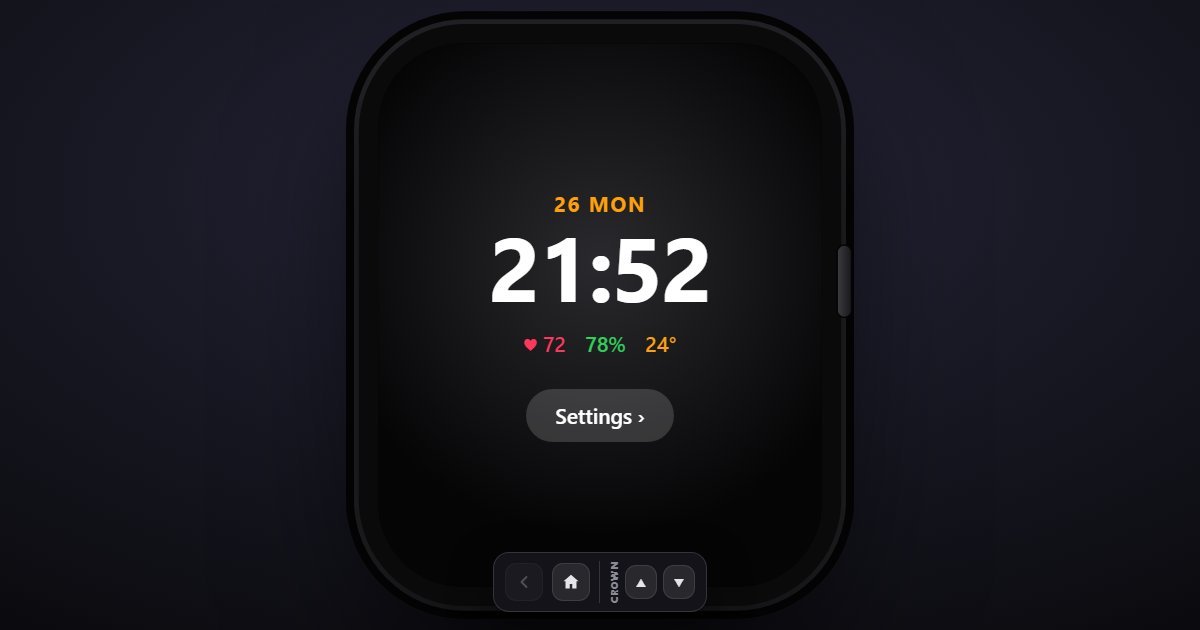
How watchOS organises its Settings
The list follows the iPhone's order in miniature. Airplane Mode, Wi-Fi, Bluetooth and Cellular first, then Notifications, Sounds & Haptics and Focus, then General, which carries About, Software Update, Orientation, Wake Screen, Wrist Detection, Language & Region and Reset. Display & Brightness, Clock, Wallet & Apple Pay, Passcode and Battery follow, and Siri sits where Apple Intelligence & Siri does on the phone.
Gestures, present from watchOS 10 onward, holds Double Tap and, since 26, Wrist Flick. Accessibility is next, then the health rows the watch is bought for: Workout, Heart and Sleep. App View chooses how the app screen is drawn. Screen Time, Privacy & Security, Music, Digital Crown, Sound Recognition, Control Center, Emergency SOS and App Store finish the list. Almost every row is a shortened version of the iPhone page of the same name, with the rows that only make sense on a wrist.
What changes between versions
Five releases are here. watchOS 9 has no Gestures row. watchOS 10 and 11 add it with Double Tap, which arrived in 10.1. watchOS 26 adds Wrist Flick to that screen. watchOS 27 puts the Dynamic App Grid, which highlights Siri Suggested apps when you press the Crown, in front of Grid View and List View under App View. About and Software Update report the release and the paired Series model you chose.
Three settings worth knowing the path to
- Settings > Gestures > Double Tap
Tap index finger and thumb together twice to act on what is on screen. It is on by default on Series 9 and later and this is the only place to change what it does with the Smart Stack.
- Settings > General > Wrist Detection
Turn it off and the watch stops locking when taken off, which also disables Apple Pay and background heart readings. People switch it off for a strap change and forget.
- Settings > App View
Dynamic App Grid, Grid View or List View since watchOS 27. If the app screen looks different after an update, this is why.
Questions people ask about watchOS settings
Do I have to change Apple Watch settings from the iPhone?
No. The Watch app on the iPhone mirrors most of them, but the watch has its own Settings app with every row shown here, scrolled with the Digital Crown.
Where is Double Tap in watchOS Settings?
Under Gestures, a row added in watchOS 10 between Siri and Accessibility. Wrist Flick joined it in watchOS 26. watchOS 9 in the simulator has no Gestures row at all.
Is this the real watchOS?
It is a simulation of the watch's Settings app, with the rows and wording of each release and sample values such as the paired network. No apps run.