Google · Pixel Watch · watch settings
Wear OS Settings: Google's watch menu, from Wear OS 3 to the Widgets of Wear OS 7
Wear OS Settings is a single round list, swiped rather than scrolled with a crown, and Google has kept its order stable while renaming what the rows contain. This page walks the list as it stands in Wear OS 7 on a Pixel Watch, explains the Tiles-to-Widgets change, and links every row to a screen you can open.
- Newest release here
- Wear OS 7
- Versions you can open
- 5
- Top-level sections
- 17
- Rows in the tree
- 490
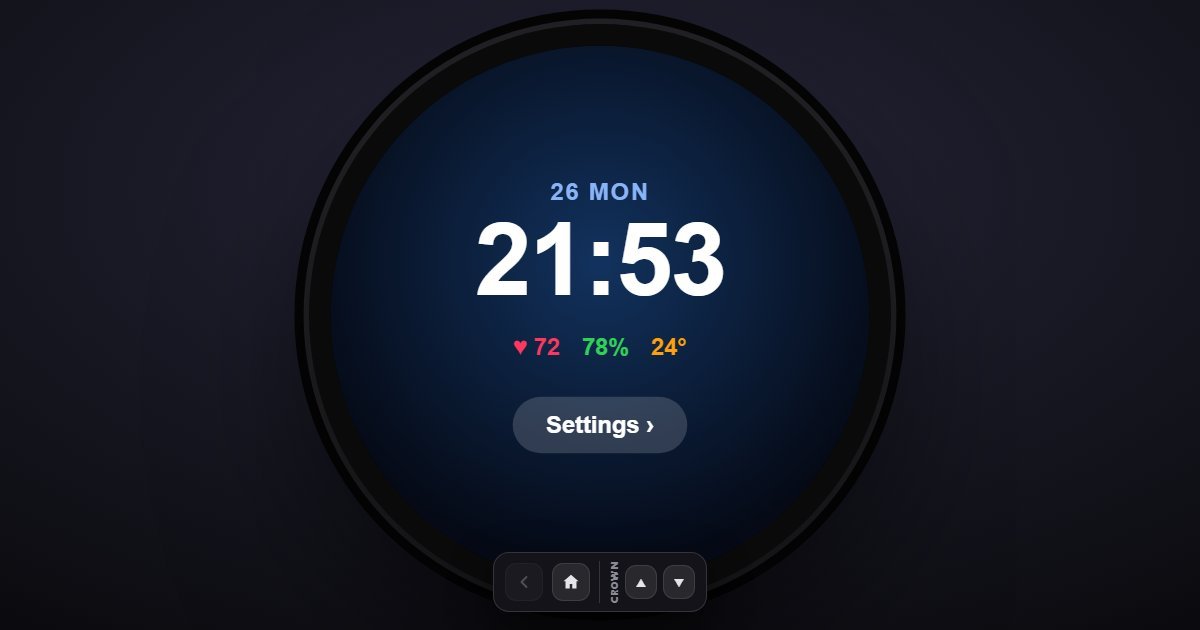
How Wear OS organises its Settings
The list opens with Connectivity, which bundles Bluetooth, Wi-Fi, NFC and mobile networks into one page instead of the four rows a phone would use. Display, Gestures and Apps & notifications follow, then Battery and Sound & vibration. The Google row holds Assistant, Wallet and the account. Accessibility comes next, with TalkBack, text-to-speech and magnification.
System is the housekeeping page: About, System update, Date & time, Languages & input, Backup and Reset options. Notifications and Watch faces & Widgets follow, then Location, Safety & emergency, Security and Personalization, where the hardware buttons are remapped. Health & fitness carries the heart-rate mode and the Fitbit hand-off, and General closes the list with Touch lock and the tilt-to-wake options. The design language is Material, with thick toggles and round dialogs.
What changes between versions
Five releases are here. Wear OS 3 sits on Android 11 with the original Pixel Watch layout. Wear OS 4 and 5 keep the list and bump the Android base to 14 and 15. Wear OS 6 moves to Android 16. Wear OS 7, on Android 17, renames Tiles to Widgets throughout, so the row becomes Watch faces & Widgets, and adds a Live Updates switch for ongoing scores, workouts and deliveries. About and System update report the release you chose rather than a fixed build.
Three settings worth knowing the path to
- Settings > Watch faces & Widgets > Widgets
The swipeable cards next to the watch face, called Tiles until Wear OS 6. If you are following an older guide that says Tiles, this is the row it means.
- Settings > Security > Require on wrist removal
Locks the watch the moment it leaves your wrist, which also protects Wallet. It is a sub-row of Screen lock and easy to miss under the PIN choices.
- Settings > Personalization > Customize hardware buttons
What the crown press and the side button open. Most Pixel Watch owners never learn the buttons are remappable because the row is near the bottom.
Questions people ask about Wear OS settings
Where did Tiles go in Wear OS?
Wear OS 7 renamed them Widgets. The row is now Watch faces & Widgets and the page inside it lists Widgets instead of Tiles; Wear OS 6 and earlier in the simulator still use the old name.
Why are Bluetooth and Wi-Fi not separate rows on Wear OS?
Google groups every radio under Connectivity, the first row of the list. Open it for Bluetooth, Wi-Fi, NFC and, on cellular models, the mobile network.
Is this the real Wear OS?
It is a simulation of the Settings app on a Pixel Watch, with the rows and wording of each release and sample values. No apps run and nothing connects to a Google account.