Android TV · Chromecast · TV settings
Google TV Settings: the Android TV menu behind the Chromecast home screen
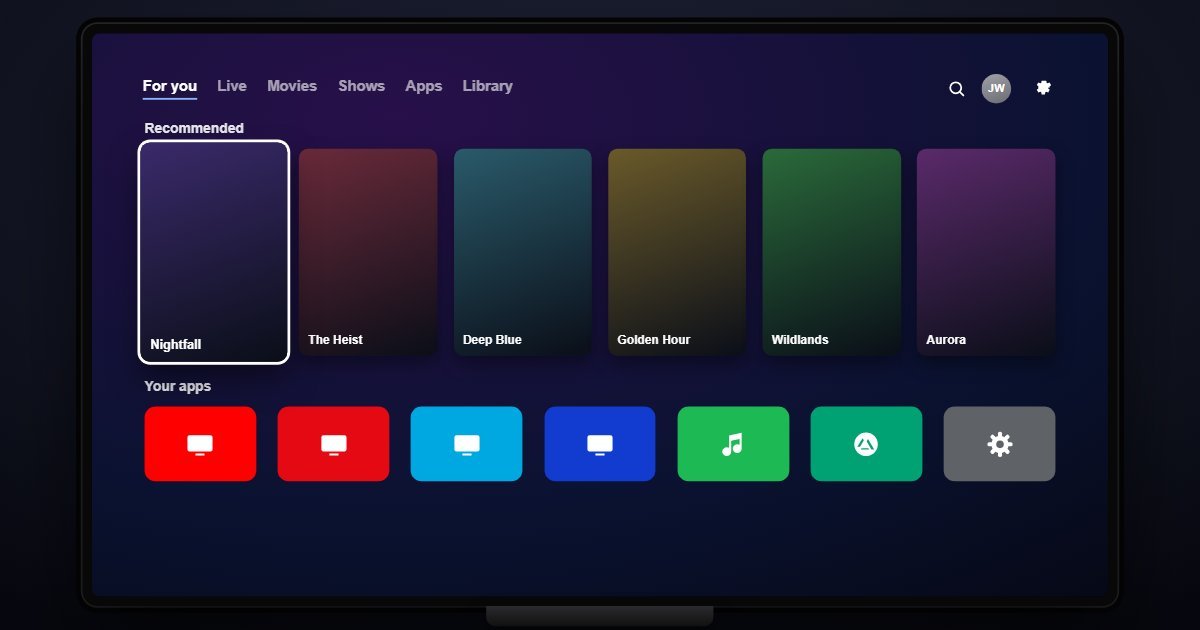
Google TV puts its settings behind a gear in the corner of the home screen, and once open they are plain Android TV: a right-hand panel of eleven rows, most of them leading to long lists. This page walks that panel as it stands on Android TV 14, points out where the useful rows hide, and links each one to a screen you can open.
- Newest release here
- Google TV 14
- Versions you can open
- 2
- Top-level sections
- 11
- Rows in the tree
- 557
How Google TV organises its Settings
The panel starts with Network & Internet and Accounts & Sign-in, the latter reaching deep into the Google Account for privacy, security and payment pages. Apps lists what is installed, with storage and permissions per app. Device Preferences is the row that matters: About, System update, Date & time, Language, Keyboard, Display & Sound, Storage, Home screen and Reset all live under it, so most support articles begin with Device Preferences.
Remotes & Accessories pairs the voice remote and controllers. Accessibility has captions, TalkBack, text scaling and high-contrast text. Channels configures the Live tab, Cast controls who may send media to the TV, and Screen saver chooses between Backdrop, Colors and Google Photos. Help & feedback follows, and Display & Sound closes the panel as a shortcut to the page that also sits under Device Preferences: resolution, HDR, frame-rate matching and audio output.
What changes between versions
Two releases are here. Android TV 12, the version most Chromecast with Google TV units shipped with, and Android TV 14, the current base for the Google TV Streamer and recent sets. Google skipped a TV release of Android 15, and the Android 16 update was still reaching sets when this was written, so 14 is the newest rung. Between 12 and 14 the row set is the same; what differs is inside Device Preferences, where About reports the release.
- Google TV 14 (newest)
- Google TV 12
Three settings worth knowing the path to
- Settings > Display & Sound > Match content frame rate
Seamless or non-seamless switching so films play at 24 Hz instead of being judder-converted to 60. It is off by default on most sets and it is the setting AV forums argue about.
- Settings > Device Preferences > Home screen
Customize channels, and switch off Video previews and Audio previews, which is how you stop the home screen autoplaying trailers with sound.
- Settings > Cast > Let others control your cast media
Always, While casting or Never. Set to Always, anyone on the Wi-Fi can pause or skip what the TV is playing from their phone.
Questions people ask about Google TV settings
Is Google TV the same as Android TV?
Google TV is the home screen and recommendation layer; the settings underneath are Android TV's. That is why the panel here looks like a plain Android TV box once you leave the home screen.
Where is the resolution setting on Google TV?
Settings > Display & Sound > Resolution, with Auto, 4K at 60 or 50 Hz and 1080p. The same page is also reachable through Device Preferences on both releases.
Is this the real Google TV?
It is a simulation of the Settings panel with the rows and wording of each release. The account, device name and network shown are sample values and no apps run.