Xiaomi · phone settings
HyperOS Settings: the Xiaomi menu, from the first HyperOS to the Assistance row of 3.1 and 4
Xiaomi's HyperOS keeps MIUI's habit of a short, opinionated Settings list: fourteen rows, with most of the system's oddities collected under Additional settings. This page walks the list as it stands in HyperOS 4 on Android 17, explains what HyperOS 3.1 pulled out into a row of its own, and links every row to a screen you can open.
- Newest release here
- HyperOS 4.0
- Versions you can open
- 5
- Top-level sections
- 14
- Rows in the tree
- 519
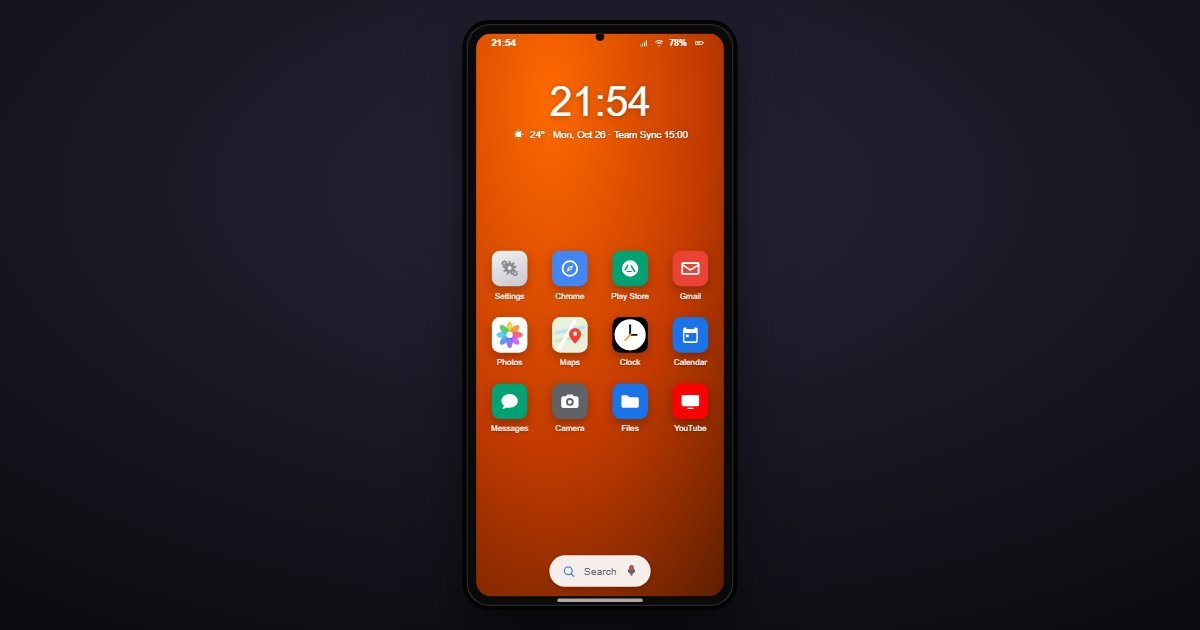
How HyperOS organises its Settings
Wi-Fi and Bluetooth sit at the top as separate rows, then Connection and sharing, which holds the SIM cards, mobile data, hotspot and NFC. Wallpaper, Home screen and Display follow; Home screen is where the App Drawer or Classic layout is chosen and Memory extension lives. Sound and vibration, then Notifications and Control center, which is where Xiaomi's split shade and the notification badges are configured.
Battery is a page of its own with Battery saver, Adaptive battery and the charging options. Privacy protection covers permissions, the privacy dashboard and special permissions. Passwords and security is the lock screen, fingerprint and face unlock, Find Device and App lock. Assistance, new in HyperOS 3.1, is Xiaomi's name for accessibility. Additional settings carries Buttons and gestures, one-handed mode, languages, date and time and Backup and reset, and About phone closes the list with the HyperOS and Android versions.
What changes between versions
Five releases are here. HyperOS 1.0, on Android 14, and 2.0, on Android 15, share the original thirteen rows with accessibility buried in Additional settings. HyperOS 3.0 keeps that on Android 16. HyperOS 3.1 pulls the accessibility settings out into a root row named Assistance. HyperOS 4.0, on Android 17 and launched with the Xiaomi 17 series, keeps the Assistance row and the same fourteen-row list. About phone reports the HyperOS and Android versions you chose.
Three settings worth knowing the path to
- Settings > Home screen > With App Drawer
The switch between an iPhone-style grid and an Android app drawer. Xiaomi ships Classic by default, and this is the row that new owners moving from a Pixel look for first.
- Settings > Additional settings > Buttons and gestures
Navigation gestures versus buttons, the double-press-power camera shortcut and the back gesture. On HyperOS it is under Additional settings, not under Display or System.
- Settings > Assistance > Screen reader
Xiaomi's accessibility page, a root row since HyperOS 3.1 with vision, hearing and physical controls beneath it. In HyperOS 3.0 and earlier the same screens sit under Additional settings.
Questions people ask about HyperOS settings
Where is accessibility in HyperOS?
In HyperOS 3.1 and 4 it is the Assistance row between Passwords and security and Additional settings. In HyperOS 3.0, 2.0 and 1.0 open Additional settings and scroll to Accessibility.
Where are gesture and navigation settings on a Xiaomi phone?
Settings > Additional settings > Buttons and gestures. Xiaomi keeps navigation, the power-button shortcuts and one-handed mode together there rather than under Display.
Is this the real HyperOS?
It is a simulation of the Settings app with the rows and wording of each HyperOS release. The device, model number and processor shown are sample values and no apps run.